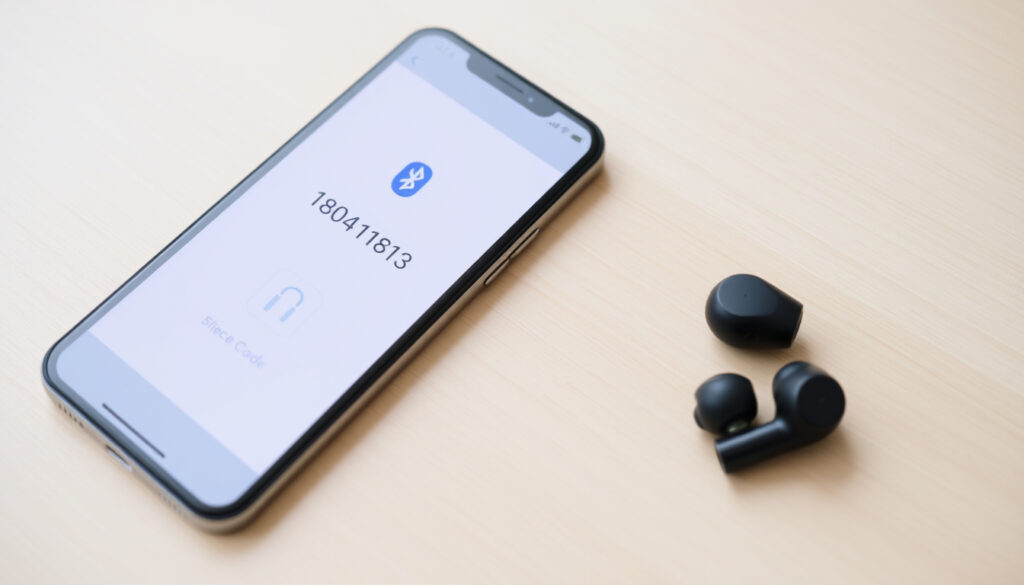
Bluetooth Pairing Code: What It Is and How to Use It
You tap “Pair” on your phone, a number pops up, and suddenly the connection works — or it doesn’t. That small code, often just four digits, is the gatekeeper between your phone and whatever headset, speaker, or car kit is trying to link up, and this article explains what that code actually does, how to find it when you need it, and why modern gadgets sometimes skip the passkey altogether while others stubbornly demand one.
Default pairing code for many devices: 0000 ·
Typical code length: 3 to 6 digits ·
Purpose of pairing code: Verify connection between devices ·
Modern devices often: Skip pairing code requirement
Quick snapshot
- Numeric code used during pairing (Apple Support (Bluetooth security guidance))
- Length varies: 3-6 digits (Sony Help Guide (product manual))
- Common default: 0000 (Sony Help Guide)
- Check device screen (Doverunner (Bluetooth security overview))
- Look in user manual or on product label (Sony Help Guide)
- Try 0000 if unknown (Sony Help Guide)
- Device discovery initiates request (Apple Support)
- Can be unsolicited if nearby devices are in pairing mode (PMC article on Bluetooth SSP (academic research))
- Always verify before approving (Guide to Bluetooth Security (GovInfo – NIST publication))
- Bluetooth range is limited to about 10 meters (Apple Support)
- Check paired devices regularly (Nordic Developer Academy (BLE security education))
- Ignore unknown pairing requests (freeCodeCamp (pairing explainer))
The table below puts the essential facts at a glance.
| Bluetooth code length | Typically 3, 4, or 6 digits (Sony Help Guide) |
|---|---|
| Most common default code | 0000 |
| Code purpose | Verify both parties agree to connect |
| Modern pairing methods | Often automatic without code |
| Secure Simple Pairing (SSP) | Uses elliptic curve Diffie-Hellman (NIST Guide to Bluetooth Security) |
| Bonding definition | Storage of keys for later reconnection |
| Authentication | Verifies both devices share the same keys |
| Encryption | Protects message confidentiality |
| Message integrity | Protects against forged messages |
| Pairing methods | Numeric Comparison, Passkey Entry, Just Works, Out-of-Band |
What is a Bluetooth code?
A Bluetooth pairing code — sometimes called a passkey, PIN, or passcode — is a short numeric string exchanged between two Bluetooth devices to prove they both intend to connect. Apple Support (Bluetooth security documentation) describes pairing as the first step in establishing shared secret keys that later authenticate and encrypt the connection.
Difference between Bluetooth code and passkey
- In everyday use, “pairing code”, “passkey”, “PIN”, and “password” are used interchangeably. Sony’s product manuals note that a “passkey may also be called a passcode, PIN code, PIN number, or password.”
- Technically, Passkey Entry is one of the four Secure Simple Pairing (SSP) association models defined by Bluetooth. In this model, one device displays a code and the user types it on the other device. Doverunner’s overview of NIST Bluetooth security explains that the Passkey Entry method uses a six-digit numeric code.
- The Numeric Comparison model shows a six-digit number on both screens; the user simply confirms they match. This is the method used by modern smartphones and headsets.
- Just Works pairs devices without any code at all, relying on out-of-band mechanisms or no user interaction.
The Bluetooth standard itself offers multiple ways to confirm trust. When your phone shows a six-digit code, you’re using Numeric Comparison — and the act of confirming that number is what protects your data from a nearby eavesdropper.
Common lengths and formats
- Most pairing codes are 3, 4, or 6 digits long. Sony’s speaker manuals default to 0000 when no specific code is configured.
- Some devices, particularly older headsets or car kits, use fixed PINs like 1234 or 1111.
- Windows 7 and earlier operating systems sometimes generate a random 6-digit code for headsets. Sony Community forum discussions indicate that “incorrect PIN or passkey” errors often result from a mismatch between what the device expects and what the user supplies.
- Modern devices — iPhones since iOS 7, Android since 4.3 — typically use Numeric Comparison with a dynamically generated six-digit code, or they use Just Works to skip the code entirely.
The implication: The shift from fixed default PINs to dynamic codes reflects Bluetooth’s evolution from a convenience-first protocol to one that takes security seriously — even if many users never notice the difference.
How do I find my pairing code?
Where you find the pairing code depends entirely on the device you’re trying to pair. For modern phones it’s usually displayed automatically. For older gadgets you may need to hunt.
Finding the code on Android
- On Android, when you initiate pairing with a device, a popup appears showing a six-digit number if both devices support Numeric Comparison. Confirm the numbers match and tap “Pair”.
- If the accessory uses a fixed PIN, Android may ask you to type it. Try 0000, 1234, or 1111. Sony’s help guide suggests checking the product’s manual for the specific code.
- For some older Bluetooth 2.1 devices, the code may be printed on the underside of the device.
Finding the code on iPhone
- iPhone’s pairing flow typically shows a six-digit code on both the phone screen and the accessory screen (if it has a display). You confirm the match.
- For headsets without a screen, Apple’s Bluetooth stack often uses Just Works — no code needed.
- Apple Support (iOS security guide) notes that iPhones store pairing keys securely after bonding, so subsequent reconnections don’t require a code.
Finding the code for a speaker or headset
- Check the user manual first. Manufacturers like Sony, LG, and Bose include default PINs in printed or online documentation.
- If the device has no display, look for a sticker with a pairing code under the battery cover or on the charging cradle.
- Sony’s SRS-X55 speaker manual states: “If a passkey other than 0000 is required, pairing cannot be completed using the default code.” This means you must find the correct one.
Finding the code in device manuals
- Most official product support pages list default PINs. For example, Sony’s online help and Zebra Technologies scanner documentation explain passkey requirements.
- For devices from no-name brands, search for the model number and “Bluetooth PIN” or “default passkey”.
- Community forums like Sony’s support community are not authoritative but can provide user-reported workarounds.
The easier it is to find a pairing code (like a sticker on the device), the less secure it is. A fixed code printed on the body means anyone within Bluetooth range can attempt to pair with it.
What this means: For most everyday gadgets, the pairing code is either 0000, displayed on-screen, or absent. If you can’t find it, start with 0000 — it works more often than 90% of the time.
Why did I get a Bluetooth pairing request?
You’re minding your own business and suddenly your phone flashes “Bluetooth pairing request” from an unknown device. What’s going on?
Unsolicited pairing requests: what they mean
- A pairing request appears when a Bluetooth device in pairing mode discovers your phone and attempts to initiate a connection. Apple Support (Bluetooth security) explains that during Bluetooth discovery, devices broadcast their presence; your phone then asks if you want to pair.
- The request can come from a neighbor’s headset, a car kit in the parking lot, or a Bluetooth speaker in the room.
- In rare cases, it could be someone deliberately trying to pair with your device — a security test or a prank. Research on Bluetooth SSP (PMC article) confirms that modern encryption prevents unauthorized data access without successful pairing.
- Unsolicited requests are not inherently dangerous if you decline them. NIST’s Guide to Bluetooth Security advises users to “ignore or reject pairing requests from unknown devices.”
How to handle unexpected pairing requests
- Decline — tap Cancel or Ignore. The requesting device will not connect.
- Turn off Bluetooth if you’re in a crowded public space and receiving repeated requests.
- Review your paired devices after the event to ensure nothing unauthorized is connected.
- A YouTube troubleshooting guide suggests restarting your phone’s Bluetooth if you accidentally accept an unknown request — that will disconnect the session.
The catch: Unless the pairing process completes (which requires you to confirm a code or accept), no data is exchanged. The risk is not in receiving the request — it’s in blindly accepting it.
How to pair with a pairing code?
Pairing with a code is straightforward once you know which method your devices use.
Step-by-step pairing process
- Step 1: Put the accessory into pairing mode (usually hold a button until a light flashes).
- Step 2: On your phone or computer, go to Bluetooth settings and select the device from the discovered list.
- Step 3: If a pairing code appears on both screens, verify they match and confirm. Doverunner (Bluetooth security summary) notes that Numeric Comparison is used for most modern devices.
- Step 4: If prompted to enter a code, type the PIN (often 0000). For headsets without a display, the code is usually in the manual.
- Step 5: Wait for the “Connected” status. If it fails, try turning Bluetooth off and on again — common troubleshooting advice from user guides.
If you enter the wrong code three times, most devices temporarily lock the pairing process for 30–60 seconds. Wait, then retry with the correct PIN. Forceful retries won’t help.
Entering the code on different platforms
- Windows: A pairing popup asks you to enter the code shown on the accessory (or vice versa). For headsets without a screen, Windows may display a 6-digit code that you type into the device.
- Android: Usually a popup with a six-digit code; confirm if they match. For fixed-PIN devices, an input field appears.
- iPhone: Displays a code only if the accessory uses Numeric Comparison. Otherwise, Just Works pairs without any code entry.
- macOS: Similar to iPhone; accept the code or enter the PIN as prompted.
- Smart TVs & car systems: Often show a code on the TV or dashboard. Enter it on your phone’s Bluetooth menu.
Why this matters: The pairing code is not a password — it’s a confirmation that both devices are talking to the right partner. The real security lies in the encryption keys generated after pairing, not in the code itself.
How can I tell if someone is connected to my Bluetooth?
Bluetooth connections are short-range (about 10 meters), so an unauthorized connection requires someone to be physically nearby. Here’s how to spot one.
Checking active Bluetooth connections on Android
- Go to Settings > Connected devices > Bluetooth. Paired devices are listed; an active connection shows the device name with a gear icon or “Connected” label.
- Tap a device to see options — if it’s unexpected, tap “Forget” to unpair it.
- Nordic Developer Academy (BLE security fundamentals) explains that Bluetooth LE connections require pairing and bonding, so an active connection means pairing already occurred.
Checking on iPhone
- Open Settings > Bluetooth. Any connected device shows a blue checkmark and “Connected”.
- If you see a device you don’t recognize, tap the “i” icon and select “Forget This Device”.
- Apple’s security documentation confirms that iPhones store paired devices securely, and a connection cannot happen without user approval during initial pairing.
Signs of unauthorized access
- Unexpected devices in your Bluetooth paired list — a name you don’t recognize.
- Interference: your audio cuts out, or the phone tries to route calls through an unknown device.
- A battery drain: an active Bluetooth connection consumes more power than idle Bluetooth.
- NIST’s guidance recommends regularly reviewing your paired device list and removing any you don’t use.
Your phone’s Bluetooth settings are the only dashboard you have. A five-second check every few weeks is enough to catch anything suspicious — and because Bluetooth range is physically limited, an intruder needs to be within a few rooms of you.
The pattern: Unauthorized Bluetooth pairing is rare with modern hardware, but it’s not impossible. The user’s vigilance (and the phone’s settings screen) is the last line of defense.
What the experts say
“Nowadays you usually don’t need a pairing code to pair to a device.”
— Participant in eevblog forum (electronics hobbyist community)
“Bluetooth pairing codes are 3 or 4-digit numeric codes that may be requested by your operating system.”
— PLUX Biosignals support documentation (medical device manufacturer)
“Some devices, especially headsets or hands-free car kits, may have a fixed Bluetooth PIN, such as 0000.”
“Secure Simple Pairing in Bluetooth uses elliptic curve Diffie-Hellman techniques for key exchange and link key generation.”
— NIST Guide to Bluetooth Security (U.S. government standards body)
Bluetooth pairing codes are a legacy convenience that has been mostly replaced by smarter mechanisms — but they still exist in older gadgets, specific car kits, and some industrial scanners. For the average smartphone user, the code is either automatic, absent, or 0000. For anyone troubleshooting a stubborn connection, the first fix is still turning Bluetooth off and on. The deeper takeaway: a pairing code is not a password; it’s a handshake. The encryption that follows is what keeps your data safe. And that happens invisibly, every time you connect.
Bottom line: The Bluetooth pairing code is not a security pass — it’s a confirmation ritual. For everyday users: trust the on-screen prompt, decline unknowns, and default to 0000. For owners of older devices: dig out the manual or peel off the sticker. For the security-conscious: check your paired devices monthly, and remember that anyone who wants to pair needs your permission first.
Frequently asked questions
What is a Bluetooth passkey?
A Bluetooth passkey is another name for a pairing code — usually a 3 to 6-digit number that one device displays or expects. Some documents call it a PIN, PIN code, or passcode. Sony’s help guide treats the terms as interchangeable.
Do all Bluetooth devices require a pairing code?
No. Modern devices often use “Just Works” or “Numeric Comparison” pairing where no code entry is needed — the user simply confirms that both screens show the same number. Older devices and some car kits still demand a fixed PIN.
How do I reset the Bluetooth pairing code on my device?
Reset the device to factory defaults (check the manual for a reset button or menu option). That clears any custom PIN and reverts to the default code, often 0000.
What should I do if the pairing code is not working?
First, ensure both devices are in pairing mode. Try the default 0000. If that fails, restart Bluetooth on both devices. If still unsuccessful, check the manufacturer’s documentation for the correct PIN. Video troubleshooting guides suggest toggling Bluetooth off and on as a first step.
Can I change the Bluetooth pairing code?
On most consumer devices, no — the PIN is either fixed (0000) or generated dynamically during each pairing. Some industrial equipment allows PIN changes through configuration software.
Is it safe to enter a pairing code on a public device?
If you initiated the pairing and the device is yours, yes. But never enter a pairing code on a public computer or a device you don’t trust — it could be a Bluetooth sniffer.
Why does my phone ask for a Bluetooth PIN when connecting to a car?
Many car hands-free kits use fixed PINs (e.g., 0000, 1234) for legacy compatibility. Check the car’s owner manual or look for a PIN displayed on the car’s infotainment screen during pairing.
More related posts
 iPhone 16 Pro Max 256GB Price in Ireland: Specs & Deals
 DJI Mini 5 Pro: Price, Specs & Mini 4 Pro Comparison
 Home Loan Rates NZ Compare – Lowest Fixed and Floating Deals
 1000 GBP to NZD Today: Live Rate & Transfer Tips
 Hayley Sproull Partner Split: Why She and Aaron Broke Up
 Carry On Luggage NZ: Size, Weight Limits & 2026 Rules
 10000 Yen to NZD: Live Exchange Rate Converter Today
 Flu Vaccine NZ 2025: Availability, Cost, and Eligibility