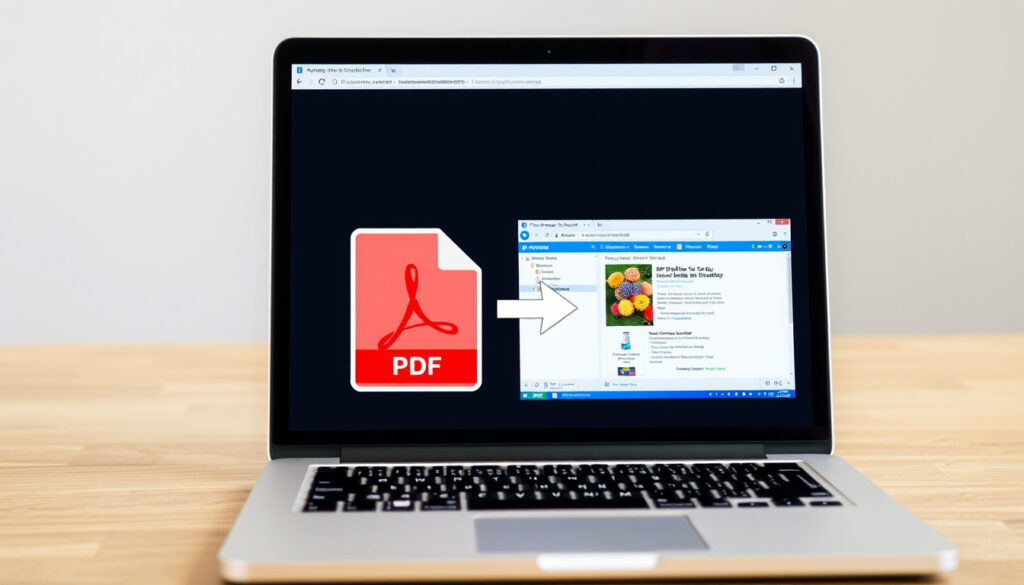
Convert PDF to JPG: Free Online & Offline Tools Compared
Few things feel as urgent as needing to turn a PDF into an image right now — maybe for a presentation, a social media post, or just to save a single page. The good news: you don’t need expensive software or a design degree — a handful of free online tools can handle the job in seconds, and this guide covers the best options, what they hide behind free tiers, and when offline tools make more sense.
File size limit (free tier): Typically 100 MB ·
Pages per conversion (free): Up to 20 pages ·
Conversion speed: Seconds to a minute ·
Number of major free tools: 5+ (Adobe, iLovePDF, Smallpdf, Canva, others) ·
Output formats: JPG, PNG, TIFF ·
Registration needed: Varies; some tools require none
Quick snapshot
- Exact file size limits for each tool may vary and change over time
- Whether tool servers delete uploaded files immediately after conversion
- Specific data retention policies differ across converters
- Whether free tools limit the number of conversions per day
- Whether server locations affect data privacy regulations
- Most online converters process a standard PDF in seconds to under a minute (Smallpdf)
- Mobile conversion speed is comparable to desktop on stable connections (CamScanner)
- Batch conversion capability is becoming standard in free tiers (PDFMate)
| File size limit (free) | Typically 100 MB |
| Pages per conversion (free) | Up to 20 pages |
| Registration required | Adobe, Canva – yes; iLovePDF, Smallpdf – no |
| Output formats | JPG, PNG, TIFF |
| Processing speed | Seconds to a minute |
How do I convert a PDF to JPG?
Every major converter follows the same basic flow: upload a PDF, select the output format (JPG is usually default), and download the images. The differences show up in file limits, sign-up requirements, and extra features.
Using Adobe Acrobat online
- Go to Adobe Acrobat online (official document cloud tool) and drag your PDF onto the upload area.
- Select JPG (or PNG, TIFF) and click “Convert.” Adobe creates one JPG per page and offers a ZIP download.
- Files under 100 MB convert without an account; larger files require a free Adobe account.
Using iLovePDF
- Visit iLovePDF (dedicated conversion service) and drop your PDF.
- Choose “Convert entire pages” or “Extract images” – the free tier converts full pages to JPG.
- Download each image individually or as a ZIP. No registration needed for files up to 100 MB.
Using Smallpdf
- Open Smallpdf (browser-based converter requiring no install) and upload your PDF.
- Smallpdf converts all pages to JPG in one go. Free users can convert documents up to 20 pages.
- Download the individual JPGs or the whole bundle. No account required.
For a one-off conversion, any of these three works. But the choice of tool determines whether you need to sign up – and that matters when you’re in a hurry.
The implication: if speed and zero friction are your only criteria, iLovePDF or Smallpdf win. If you want official software from a trusted name and don’t mind creating an account, Adobe is the safe bet.
How do I convert a PDF to JPG for free?
Free doesn’t mean unlimited. Each converter draws its own line on file size, page count, and sign-up requirements.
Free online converters overview
- Adobe Acrobat online – free for files under 100 MB; requires account for larger files.
- iLovePDF – free with no sign-up; files up to 100 MB, unlimited conversions in basic mode.
- Smallpdf – free for files up to 20 pages; no account needed.
- Canva – free but requires a Canva account; allows editing before export.
- FreeConvert – 100% free in browser, supports JPG, works on any OS (FreeConvert).
- PDF2Go – free, also outputs PNG, no sign-up required (PDF2Go).
Limits of free versions
The most common constraint is page count – many free tiers cut off at 20 pages per file. File size caps hover around 100 MB. Some services like Smallpdf reserve “extract images” (pulling embedded photos from a PDF) for Pro users. Batch conversion across multiple PDFs is also often a paid feature.
Step-by-step free conversion
- Pick a converter from the list above that matches your file size and page count.
- Open the website in your browser – no downloads needed.
- Drag your PDF onto the upload zone or click to browse.
- Let the tool process (usually takes 5–30 seconds).
- Download the JPG images individually or as a ZIP archive.
The catch: free converters that don’t charge you are making money elsewhere – sometimes through ads, sometimes by holding your files temporarily. Check the privacy policy if confidentiality matters.
What is the best PDF to JPG converter?
“Best” depends on what you value most: speed, privacy, editing flexibility, or zero sign-up. Four tools dominate the free space, and each has a distinct trade-off.
Adobe Acrobat vs. iLovePDF vs. Smallpdf vs. Canva
Four popular converters, one pattern: no one does everything perfectly. Here’s how they stack up.
Five features tell the story:
| Feature | Adobe Acrobat | iLovePDF | Smallpdf | Canva |
|---|---|---|---|---|
| File size limit (free) | 100 MB | 100 MB | ~50 MB (varies) | 100 MB |
| Pages per file (free) | Unlimited | Unlimited | 20 pages | Unlimited |
| Sign-up required | For files >100 MB | No | No | Yes (free account) |
| Output formats | JPG, PNG, TIFF | JPG, PNG | JPG | JPG, PNG |
| Extra features | OCR, compress | Batch, merge | Compress, edit | Design editing |
TL;DR: The best tool depends on your need: no sign-up wins for speed, but paid features unlock batch and higher limits.
Privacy and security considerations
All online converters process your PDF on their servers. Adobe (regulated enterprise provider) holds files for a limited time. iLovePDF and Smallpdf state they delete uploaded files after conversion, but independent audits are rare. For sensitive documents, offline tools are the only safe bet.
Any free online converter has a business incentive to store or scan your file. If you’re converting a contract, a medical record, or anything confidential, use a desktop tool that never sends data to the cloud.
Why this matters: the “best” converter for a school flyer is not the same as the “best” converter for a legal document. Choose based on what you’re converting, not just what’s free.
Can I convert PDF to JPG on my phone?
Absolutely. Every major online converter works on a mobile browser, and several offer dedicated apps.
Using mobile-friendly web tools
- All the tools mentioned above (Adobe, iLovePDF, Smallpdf, Canva, FreeConvert) have responsive websites – upload from your phone’s gallery or file manager.
- CamScanner (mobile scanning and conversion app) offers a browser-based PDF-to-JPG tool that converts within seconds using drag-and-drop.
- Drawboard (browser-first PDF tool) requires no sign-up and works on any device (Drawboard).
Android apps for PDF to JPG
- Adobe Scan (free on Google Play) lets you scan documents and export pages as JPG.
- iLovePDF has an Android app with the same conversion engine as the web version.
- PDF to JPG Converter by appsxperts is a lightweight option; check permissions before installing.
iPhone and iPad options
- The built-in Files app on iOS can export a PDF as images – no third-party app needed.
- Adobe Acrobat Reader for iOS includes a “Export PDF” feature to JPG.
- Canva’s iOS app lets you import a PDF, edit, and download as JPG.
The trade-off: mobile conversion quality matches desktop, but large files (over 50 MB) can strain mobile data and battery. Use Wi-Fi for big documents.
How to convert PDF to JPG without Acrobat?
Adobe Acrobat is powerful, but you don’t need it. Several free alternatives do the job just as well – and some even better.
Using iLovePDF
iLovePDF (no-install converter) converts full PDF pages to JPG. The free version handles files up to 100 MB and offers batch conversion. No account needed, no ads interrupting the process.
Using Smallpdf
Smallpdf (browser tool with speed focus) converts up to 20 pages per file. It’s one of the fastest options – upload to download in under 10 seconds for a standard 5-page PDF. No account required.
Using Canva
Canva (design platform with conversion ability) lets you import a PDF, edit it (add text, resize, filter), and then download as JPG. Great for marketing materials. Requires a free Canva account.
Using offline tools (GIMP, Preview on Mac, PDFMate)
- Preview (Mac) – Open the PDF in Preview, go to File > Export, choose JPEG, and save. No upload, no servers, no limits. Works offline.
- GIMP – Free, open-source image editor. Open PDF (it imports each page as a layer) and export as JPG. Available on Windows, macOS, Linux.
- PDFMate Free – Desktop software for Windows that claims to convert PDF to JPG in batch, ad-free, without plugins.
Online tools are faster to start, but offline tools are faster in the long run – no upload time, no file size limits, and zero privacy risk. For anyone converting documents regularly, downloading GIMP or using Preview saves time and worry.
For a user who converts PDFs once a month, any online tool works. For a student or professional doing this daily, an offline method eliminates the friction of uploading and the anxiety of data privacy.
TL;DR: If privacy is critical, offline tools like Preview or GIMP are the only safe bet; otherwise, any online converter works.
Pros and cons of free online PDF to JPG converters
Upsides
- No software installation – works on any device with a browser
- Fast conversion – usually under a minute
- Most tools offer batch download as ZIP
- Free up to reasonable file sizes (100 MB common)
Downsides
- Privacy risk – files uploaded to third-party servers
- Page limits (e.g., Smallpdf caps at 20 pages)
- Requires internet connection
- Some tools push upsells or have watermarking in free mode
Step-by-step: Convert a PDF to JPG in seconds
This method works with any of the free online converters and takes about 30 seconds start to finish.
- Open the converter website – Use iLovePDF or Smallpdf (no sign-up).
- Upload your PDF – Drag the file onto the page or click “Select file.”
- Choose output – Most tools default to JPG. Confirm you want one JPG per page.
- Click Convert – The server processes your file. A 5-page PDF takes 5–10 seconds.
- Download – Click “Download” to save individual JPGs or “Download all as ZIP.”
- Delete (optional) – Some tools let you hit “Delete” to remove the file from their server immediately.
No account, no credit card, no email required. That’s the whole process.
“Extract images from a PDF” – iLovePDF
iLovePDF homepage
“Drag and drop or upload the PDF document you want to convert to an image file.” – Adobe
Adobe Acrobat online description
“Convert full PDF pages to JPG online for free without creating an account.” – Smallpdf
Smallpdf feature statement
Summary
Free PDF-to-JPG conversion isn’t a single tool – it’s a spectrum. If you want the fastest result with no strings attached, iLovePDF and Smallpdf are the clear winners: no sign-up, fast conversion, and generous file limits. If you need to edit before converting, Canva is worth the free account. And if privacy is a dealbreaker, offline tools like Preview on Mac or GIMP eliminate every server risk. For anyone converting documents regularly, the choice is clear: use an online tool for casual work, but keep a desktop fallback for anything sensitive.
pdf2jpg.net, pdf.wondershare.com, shutterstock.com, youtube.com, youtube.com
For a detailed comparison of the best options available, check out this guide on top free PDF to JPG converters that reviews five leading converters.
Frequently asked questions
Common questions answered by the tools and their official documentation.
Is it safe to convert PDF to JPG online?
Most reputable services like Adobe, iLovePDF, and Smallpdf state they delete uploaded files after conversion. However, no online service offers a 100% guarantee of privacy. For sensitive documents, use offline tools like Preview (Mac) or GIMP.
Can I convert multiple PDFs to JPG at once?
Some tools support batch conversion in free mode. iLovePDF allows converting multiple files in one go, while Smallpdf’s free tier limits to one file at a time. Desktop software like PDFMate offers true batch processing.
Does converting PDF to JPG lose quality?
If you export at 100% quality (most online converters use 90–95% JPEG compression), the visual difference is negligible. For text-heavy PDFs, JPG compression can cause slight artifacts; using PNG output avoids this.
What is the difference between JPG and JPEG?
None. JPG and JPEG are the same file format – the three-letter extension JPG was an older convention for DOS compatibility. Both work identically.
Can I convert PDF to JPG on iPhone?
Yes. Use the Files app to export a PDF as images, or use Adobe Acrobat Reader, Canva, or iLovePDF’s mobile app. All produce one JPG per page.
Do I need internet to convert PDF to JPG?
Online converters require an internet connection. Offline methods (Preview, GIMP, PDFMate) work without internet and are completely private.
How do I convert a scanned PDF to JPG?
Scanned PDFs are essentially images embedded in a PDF wrapper. Any online converter will treat each scanned page as an image and export it as JPG. Tools like Adobe Acrobat can also run OCR before conversion.
What is the best image format for converted PDF pages?
JPG is best for photographs and documents with gradients. PNG is better for text-heavy pages because it preserves sharp edges without compression artifacts. TIFF is ideal for archival printing.
More related posts
 Buying a Car NZ – Step-by-Step Guide Costs 2025
 Greater Than or Equal To (≥): Meaning, Examples & Typing
 Sterling Cars Sylvia Park: Auckland Used Car Dealer
 New Zealand Couriers Tracking: How to Track Your Parcel
 New Plymouth to Taupo: Best Routes, Stops & Travel Guide
 Vehicle Insurance Quote NZ: Compare & Get the Best Rates in 2025
 Dental Assistant Jobs Auckland: Salary, Part-Time, No Experience