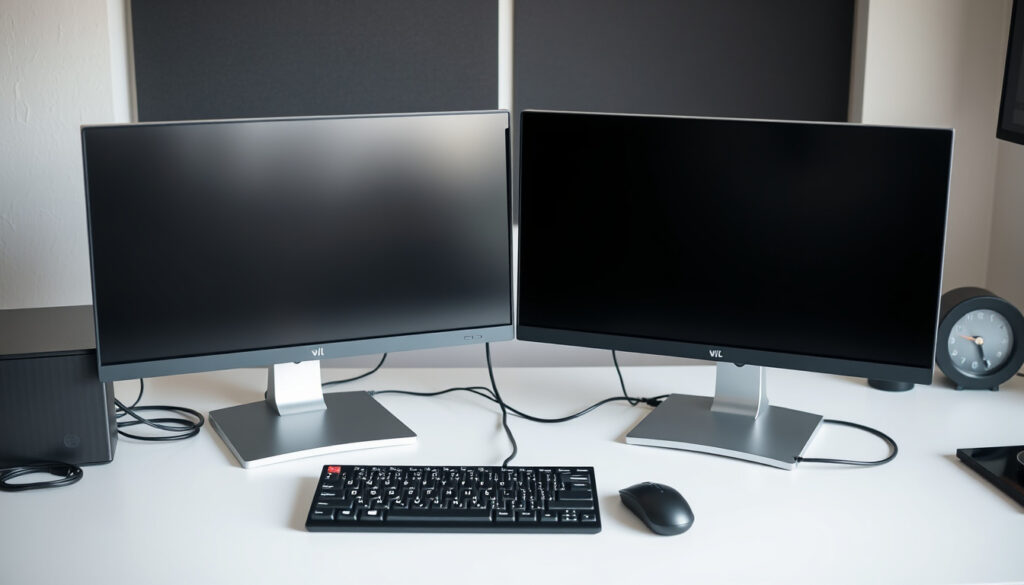
Setting Up Two Monitors: Complete How-To Guide
One screen turns into a bottleneck fast, and a second monitor fixes it with measurable results: University of Utah research puts the productivity gain at up to 42%, while a DisplayMate survey says about 70% of office workers now run two displays. This guide walks through the actual connection steps, the Windows software configuration, and the troubleshooting paths that solve most dual-monitor problems.
Productivity improvement: 42% (University of Utah study) ·
Office workers using dual monitors: 70% (DisplayMate survey) ·
Maximum monitors supported: Up to 10 (depending on GPU) ·
Standard resolution per monitor: 1920×1080
Quick snapshot
- Windows 10 and 11 natively support multiple monitors (Microsoft Support documentation)
- Display settings in Windows include a Multiple displays section for extending or duplicating (Microsoft Support) (Microsoft Support documentation)
- Windows provides a Detect button to find connected but invisible monitors (Windows Central’s troubleshooting guide)
- Optimal monitor size combination for productivity is not standardized (Windows Central testing notes) (VESA’s DisplayPort specifications)
- Whether daisy-chaining affects refresh rate at high resolutions depends on GPU and cable bandwidth (Microsoft Support) (VESA’s DisplayPort specifications)
- Best cable length for minimizing signal degradation varies by cable standard and quality — VESA’s DisplayPort specifications and HDMI specifications define limits per standard rather than one universal number.
- Windows 10 and 11 automatically detect an additional monitor when it is connected to a Dell computer (Dell’s support article)
- Most dual-monitor setups are visible within 10–30 seconds of connecting the cable (Dell’s support article)
- Driver updates and Windows updates may add or change multi-display features over time (Microsoft Support) (Dell’s support article)
- Check your graphics card ports to confirm at least two video outputs are available
- Connect each monitor to a separate port, then open Settings > System > Display to arrange them (Microsoft Support)
- If using one HDMI port, plan for a USB-C adapter, docking station, or splitter based on whether you need duplicate or extended displays (Dell Support)
Quick facts
The table below compresses the hardware and OS facts that determine whether a dual-monitor plan will work before you buy anything.
| Item | Value |
|---|---|
| Minimum requirements | Two video ports on PC or laptop |
| Supported operating systems | Windows 10, Windows 11, macOS, Linux |
| Common cable types | HDMI, DisplayPort, USB-C, VGA, DVI |
| Frequent issues | No signal, wrong resolution, display not detected |
| Productivity boost | Up to 42% (University of Utah study) |
The quick pattern: two ports, one supported OS, and a cable that matches both devices are all you need for a standard dual-monitor setup.
How do I set up dual monitors?
The physical setup comes first, and it is simpler than most people expect. The main requirement is that your PC or laptop has at least two video outputs — HDMI, DisplayPort, VGA, DVI, or USB-C — because each monitor needs its own dedicated connection to the graphics card. A USB-C port on a laptop can also carry a display signal if it supports DisplayPort Alt Mode, which is common on modern ultrabooks. Once you have confirmed the ports, connect each monitor to a separate output and power the monitors on before booting the PC.
If your PC only has one HDMI port, your graphics card — not the monitor — is the bottleneck. Upgrading to a GPU with more outputs is the only way to unlock true extended displays without a workaround adapter.
After the physical connection, software configuration takes over. Open Settings > System > Display, and Windows should detect both screens. If it does not, click the Detect button under Multiple displays — Microsoft’s guidance treats detection and arrangement as separate steps because they often require different fixes. The display rectangles at the top of the settings page can be dragged to match your physical monitor layout, which is essential if your second monitor sits to the left of the first but Windows thinks it is on the right. Click Apply after moving the rectangles.
Check your graphics card ports
- Look for HDMI, DisplayPort, DVI, or VGA outputs on the back of your desktop tower or the side of your laptop.
- Laptops often expose only one video port, requiring a USB-C adapter or docking station for a second display (Microsoft Support).
- Desktops with integrated graphics usually offer one HDMI and one DisplayPort; dedicated GPUs commonly offer three to four outputs.
Connect monitors to PC
Plug each monitor into its own port on the graphics card or motherboard. Avoid adapters unless necessary — a direct DisplayPort connection is the most reliable for high refresh rates. If your monitor has multiple inputs (HDMI, DisplayPort), use the input button on the monitor to select the right one. Windows Central’s troubleshooting guide recommends checking the physical cable connection, confirming AC power is on, and verifying the input source before touching any software settings (Windows Central).
Configure display settings in Windows
Go to Start > Settings > System > Display. Under Multiple displays, choose Extend these displays so the two monitors act as one continuous desktop. Windows 10 and 11 both detect an additional monitor automatically once connected, according to Dell’s official support instructions. If the second display is not visible, click Detect, and Windows will search for connected displays. For quick switching, press Windows key + P to open the project menu and choose Extend — this is the fastest path when you just want the second screen working (Windows Central).
Adjust resolution and orientation
Windows automatically picks the native resolution for each monitor, but you can override this in Display settings by clicking the numbered monitor rectangle and choosing a resolution. If text looks blurry or stretched, set the resolution to the monitor’s native value — usually the one marked Recommended. Orientation matters for vertical monitors: use the Orientation dropdown to switch between Landscape and Portrait. This is particularly useful for coding, document review, and social media dashboards.
- Confirm the PC or laptop has at least two video outputs.
- Connect each monitor to its own output and power both monitors on.
- Open Settings > System > Display.
- Click Detect if the second screen does not appear.
- Drag the monitor rectangles to match your desk layout and click Apply.
- Press Windows key + P and choose Extend for separate content on each screen.
The implication: the software side of dual-monitor setup is a three-step loop — connect, detect, and arrange. Most people who think they have a hardware problem actually have a software detection issue that the Detect button or Windows key + P solves in seconds.
How do I get two monitors to show different things?
By default, a second monitor may mirror your primary screen, which can feel useless if you wanted a bigger workspace rather than a duplicate. The fix is switching the display mode to Extend, which turns the two screens into one wide desktop. Press Windows key + P and select Extend these displays — this is the display mode selection step Microsoft documents in its multi-monitor workflow (Microsoft Support). Once extended, drag windows across the seam between the two screens and they will land on the other monitor.
Extend mode is the difference between a workstation that feels twice as wide and a setup that just repeats your primary screen. For productivity-focused users, extend should be the default unless you are presenting something to a colleague.
Set display mode to Extend
- Press Windows key + P to open the projection panel.
- Select Extend so the two monitors function as one continuous workspace (Windows Central).
- Choose Duplicate only when you need the same content visible on both screens.
Identify and arrange monitors in Windows
Open Settings > System > Display and click the Identify button. Windows will display a large number on each physical screen so you know which rectangle is which. Drag the rectangles to match your physical layout — if your second monitor sits to the left of your primary display, drag its rectangle to the left. Microsoft notes that the display rectangles can be dragged and then Apply confirms the arrangement (Microsoft Support).
Set primary display
The primary display is the one that shows the taskbar, Start menu, and default window positions. To change it, click the numbered rectangle for the monitor you want as primary, scroll down, and check the box that says Make this my main display. Windows 11 shows this option in the Scale and layout section, while Windows 10 places it under Multiple displays. This setting is especially important if your second monitor is on the left but you want the taskbar on the screen you face most often.
How to set up 2 monitors with 1 HDMI port?
A single HDMI port is the most common constraint on laptops and compact desktops, but it does not automatically block dual monitors. The right solution depends on whether you want the same image on both screens or two separate desktops. An HDMI splitter can only duplicate the signal — it sends the same video to two monitors, which is fine for presentations but useless for productivity. For extended displays, you need either a USB video adapter, a docking station, or a graphics card upgrade. This distinction between duplication and extension is the single most important fact to understand when working around a one-port setup (Microsoft Support).
Use an HDMI splitter
- A splitter duplicates the signal; both monitors show the same content.
- This works for presentations, retail displays, and dashboard screens.
- It does not create an extended desktop — if that is your goal, skip the splitter.
Use a USB-C to HDMI adapter
Most modern laptops with a USB-C port can output video through that port if the USB-C supports DisplayPort Alt Mode. A USB-C to HDMI adapter gives you a second video output, so your laptop’s built-in HDMI port and the USB-C adapter together support two monitors. Check your laptop’s specification sheet — some USB-C ports are data-only and will not carry a display signal. If the adapter does not work, that is usually why.
Use a docking station
A docking station with multiple video ports is the most reliable solution for laptops because it turns one USB-C or Thunderbolt port into several HDMI and DisplayPort outputs. Dell’s support documentation confirms that Windows 11 and Windows 10 handle multiple monitors natively, so the dock only needs to provide the physical ports — the operating system does the rest. Docking stations are also ideal if you connect and disconnect your laptop frequently, since one cable handles power, data, and video.
Consider DisplayPort daisy-chaining
If both monitors support DisplayPort Multi-Stream Transport (MST), you can daisy-chain them: monitor one connects to the PC, and monitor two connects to the DisplayPort-out on monitor one. This requires DisplayPort 1.2 or later on both monitors. The catch is that not all monitors have a DisplayPort output port — most only have inputs — so this option is limited to specific hardware (Microsoft Support).
How to connect 2 monitors to 2 computers?
Sharing two monitors between two computers — say, a work PC and a personal laptop — requires either a hardware switch or a software layer. A KVM switch (Keyboard, Video, Mouse) is the direct solution: it lets you share the monitors, keyboard, and mouse between machines with the press of a button. Some monitors also have multiple input ports (HDMI and DisplayPort, for example), so you can connect each computer to a different port and press the input button on the monitor to switch. Software solutions like Microsoft Remote Desktop are less hardware-intensive but add latency and depend on network quality.
Use a KVM switch
A KVM switch sits between your computers and your peripherals. Plug both computers into the switch, then connect the switch to your monitors, keyboard, and mouse. Pressing the switch button moves all of them to the other computer. This is the cleanest — though not the cheapest — way to run two machines with one desk setup. KVM switches also handle the EDID handshake that tells Windows what kind of display is connected, which avoids the resolution-glitch problem many users hit when unplugging and re-plugging cables.
Use remote desktop software
Remote desktop tools like Microsoft Remote Desktop let you control one computer from the other’s monitor. This works well when the second computer is on the same network and you only need occasional access. The trade-off is latency — dragging windows across screens can feel sticky over Wi-Fi — and the fact that your primary computer has to do double duty running the connection.
Manually switch inputs on monitors
If your monitors have two or more input ports, connect each computer to a different port on each monitor. To switch computers, press the input select button on both monitors. This is free and works with any setup, but it gets tedious if you switch often. A KVM switch is the upgrade path when the manual toggling becomes annoying.
Can I connect my 2nd monitor to my 1st monitor?
Yes — but only under specific conditions. Daisy-chaining, where monitor two connects to monitor one instead of directly to the PC, requires DisplayPort Multi-Stream Transport support. Both monitors must have DisplayPort 1.2 or later, and the first monitor must include a DisplayPort output port. Very few monitors include that output. When it works, daisy-chaining reduces cable clutter and is popular in offices with multiple displays on a single desk.
Check if your monitors support daisy-chaining (DisplayPort MST)
Look up your monitor’s specification: DisplayPort 1.2 with MST is the minimum requirement. Many consumer monitors support MST but lack a DisplayPort-out jack, which makes daisy-chaining impossible regardless of what the chipset can do. Also note that daisy-chaining splits bandwidth — a single DisplayPort 1.2 stream caps out at 4K at 60Hz shared across both monitors, so you may need to lower refresh rates (Microsoft Support).
Use a DisplayPort-out and DisplayPort-in
- Monitor one connects to the PC via DisplayPort-in.
- Monitor two connects to monitor one’s DisplayPort-out.
- Enable MST in the monitor’s on-screen display (OSD) menu if available.
Alternative: use a USB-C or Thunderbolt connection
Thunderbolt 3 and 4 ports can daisy-chain multiple monitors in addition to other peripherals. If your PC and monitors have Thunderbolt support, this is the cleanest daisy-chain path, though it is mostly limited to premium laptops and monitors. USB-C with DisplayPort Alt Mode also supports some daisy-chaining, but the bandwidth is lower than Thunderbolt.
The catch: most people who want to daisy-chain do not need to. It is a niche convenience for minimizing cables, not a performance upgrade. If both monitors are already on the desk, connecting each to the PC directly is simpler and avoids the refresh-rate trade-off.
How do I get my computer to recognize my second monitor?
When Windows does not see the second monitor, the fix is usually a sequence of quick checks rather than one magic setting. Windows Central’s troubleshooting documentation recommends the order: hardware first, then software detection, then display mode (Windows Central). Microsoft adds that if one external monitor works but a second one does not, the display adapter may not support multiple monitors — which means no amount of software tinkering will help until you change the hardware (Microsoft’s troubleshooting documentation).
If your graphics adapter genuinely lacks multi-monitor support, every “fix” you find online will fail — no driver update or registry hack changes what the GPU hardware was designed to output.
Check cable connections
Loose or damaged cables are the most common reason a monitor shows no signal. Reseat both ends of the cable, try a different cable if you have one, and confirm the monitor’s input source matches the port you are using. Many monitors have multiple HDMI slots, and the monitor may be looking at the wrong one (Windows Central).
Update graphics drivers
Outdated or corrupt graphics drivers can prevent Windows from recognizing a second display. Visit the GPU manufacturer’s website — NVIDIA’s driver download page, AMD’s driver support page, or Intel’s download center — and download the latest driver for your graphics card. Windows Update also delivers driver updates, but the manufacturer’s site usually has the newest versions first. After updating, restart the PC and check Display settings again.
Use Detect button in Display settings
Open Settings > System > Display and click the Detect button in the Multiple displays section. Microsoft documents this as the standard recovery step when a connected display is not visible (Microsoft Support). Clicking Detect forces Windows to re-poll the video outputs, which clears many EDID handshake failures.
Restart or reconnect monitor
Power-cycle the monitor: turn it off, unplug the cable, wait 10 seconds, plug the cable back in, and power it on. This resets the monitor’s EDID chip and forces a new handshake with the graphics card. If the monitor was connected while the PC was asleep, this often fixes the “no signal” screen that appears after wake.
Check for Windows updates
Windows Updates occasionally include display-related fixes, especially for newer GPUs and USB-C docks. Go to Settings > Update & Security > Windows Update (or Settings > Windows Update in Windows 11) and install pending updates. A reboot after updating is essential — temporary files and drivers load fresh, which resolves some detection issues.
Confirmed facts and open questions
Confirmed facts
- Dual monitors can improve task efficiency by up to 42%, based on a University of Utah study.
- Windows 10 and 11 natively support multiple monitors (Microsoft Support documentation).
- A dedicated GPU is not required but is recommended for multiple 4K monitors (Microsoft Support).
- Windows provides a Detect button and Windows key + P shortcut for display management (Windows Central).
What’s unclear
- Optimal monitor size combination for productivity — no single pairing has been proven best.
- Best cable length for minimizing signal degradation — varies by cable standard and quality.
- Whether daisy-chaining affects refresh rate at high resolutions — depends on GPU, cable, and monitor MST implementation.
The pattern: the confirmed items are documented by Microsoft, Dell, and Windows Central, while the open questions hinge on specific GPUs, cables, and monitor MST implementations.
Quotes from the documentation
“Select Start > Settings > System > Display. Under Multiple displays, choose how you want your screens to project.”
Microsoft Support — official multiple-monitor setup guide
“Go to Start > Settings > System > Display. Under Multiple Displays, click Apply and confirm.”
Dell Support — multiple monitor setup documentation
“If you can’t see the display, go to Settings > System > Display, and in the Multiple displays section, select Detect.”
Windows Central — second monitor troubleshooting guide
“If one external monitor works but more than one external monitor does not, your display adapter might not support multiple monitors.”
Microsoft Support — external monitor connection troubleshooting
The through-line: all four sources converge on the same sequence — connect hardware first, then use Settings > System > Display for detection and arrangement, then set the projection mode.
The takeaway
Two monitors are the cheapest productivity upgrade most people never install — the University of Utah’s 42% efficiency figure makes that hard to ignore. The setup itself takes less than ten minutes if you follow the sequence: connect both monitors to separate ports, open Settings > System > Display, click Detect if needed, and press Windows key + P to choose Extend. When problems appear, work through them in the same order every time: cables and input source, then the Detect button, then drivers and Windows updates. For anyone stuck with a single HDMI port on a laptop, the decision is now simple: a splitter duplicates the screen and costs little, while a USB-C adapter or docking station extends your workspace and costs more. For the dual-monitor seeker on Windows 10 or 11, the choice is clear — check your ports, connect the cable, and let Windows sort out the arrangement, or you will keep dragging windows onto a screen that was never there.
support.microsoft.com, support.microsoft.com, support.microsoft.com, windowsforum.com, microsoft.com, learn.microsoft.com, windowsforum.com, learn.microsoft.com
Frequently asked questions
Do I need a special graphics card for dual monitors?
Most integrated GPUs on modern desktop and laptop processors support at least two displays. A dedicated graphics card becomes necessary when you want multiple 4K monitors at high refresh rates, or when your motherboard only exposes one video output port. Microsoft notes that if one external monitor works but a second does not, the adapter may not support multiple monitors (Microsoft Support).
Can I use two different monitor sizes?
Yes. Windows assigns each monitor its native resolution, so a 24-inch 1080p monitor and a 27-inch 1440p monitor work fine together. The cursor will scale unevenly as it moves between differently sized screens, but the Display settings rectangles make the transition predictable. Use the Identify button to see which rectangle corresponds to which physical screen.
How do I change which monitor is left and right?
Open Settings > System > Display, then drag the numbered rectangles to match your physical layout. If your second monitor is on the left, drag its rectangle to the left of the primary display rectangle and click Apply (Microsoft Support).
What is the best cable for dual monitors?
DisplayPort is the best choice for modern monitors because it supports higher resolutions, higher refresh rates, and daisy-chaining. HDMI 2.1 is equally capable for 4K at 120Hz. For older monitors, DVI and VGA still work but cap out at lower resolutions. Use the cable that matches both your monitor’s inputs and your GPU’s outputs — a direct connection always beats an adapter.
Can I use a TV as a second monitor?
Yes, as long as the TV has an HDMI input and your PC has an HDMI output. Expect higher input lag and lower pixel density compared to a desktop monitor, which makes TVs less ideal for text-heavy work but acceptable for dashboards, video, and presentations. Check that the TV’s Game Mode or PC mode is enabled to reduce input lag.
How to set up dual monitors with a laptop?
Connect one monitor to the laptop’s HDMI port and the second monitor to a USB-C port with DisplayPort Alt Mode, or use a docking station to get multiple video outputs from one USB-C or Thunderbolt connection. Then press Windows key + P and select Extend. Dell’s support documentation confirms that Windows 10 and Windows 11 automatically detect an additional monitor when it is connected to a Dell computer — the same applies to most laptops.
Why does my second monitor look blurry?
Blurry text usually means Windows is not using the monitor’s native resolution. Go to Settings > System > Display, click the monitor rectangle, and confirm the resolution is set to the value marked Recommended. When used with a TV, blurriness may also come from the TV’s overscan or sharpness settings — set it to PC mode or adjust sharpness to zero.
The short version: most dual-monitor issues trace back to cables, detection, or display mode — fix those three and the hardware is usually fine.
Related reading
- How to fix a second monitor not detected in Windows (Windows Central)
- How to set up multiple monitors in Windows 10 (Dell Support)
- DisplayPort daisy-chaining and MST overview (VESA)
More related posts
 1 Year Old Birthday Present Ideas – Best Safe Developmental Gifts
 Convert PDF to JPG: Free Online & Offline Tools Compared
 What National Day Is It Today? Daily Calendar Guide
 What Causes Numbness in Hands: Common Reasons & When to Worry
 How to Read Thailand Gold Price Tables Like a Pro in 2026
 H&M Christchurch – Locations, Hours and Contact
 Pictures of Skin Rashes: Types, Causes & Identification Guide